Computer Fundamentals Tutorial
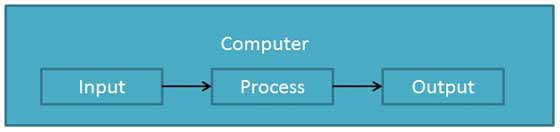
Computer is an advanced electronic device that takes raw data as an input from the user and processes it under the control of a set of instructions (called program), produces a result (output), and saves it for future use. This tutorial explains the foundational concepts of computer hardware, software, operating systems, peripherals, etc. along with how to get the most value and impact from computer technology.

Functionalities of a Computer
If we look at it in a very broad sense, any digital computer carries out the following five functions −
Step 1 − Takes data as input.
Step 2 − Stores the data/instructions in its memory and uses them as required.
Step 3 − Processes the data and converts it into useful information.
Step 4 − Generates the output.
Step 5 − Controls all the above four steps.
Advantages of Computers
Following are certain advantages of computers.
High Speed
Computer is a very fast device.
It is capable of performing calculation of very large amount of data.
The computer has units of speed in microsecond, nanosecond, and even the pico second.
It can perform millions of calculations in a few seconds as compared to man who will spend many months to perform the same task.
Accuracy
In addition to being very fast, computers are very accurate.
The calculations are 100% error free.
Computers perform all jobs with 100% accuracy provided that the input is correct.
Storage Capability
Memory is a very important characteristic of computers.
A computer has much more storage capacity than human beings.
It can store large amount of data.
It can store any type of data such as images, videos, text, audio, etc.
Diligence
Unlike human beings, a computer is free from monotony, tiredness, and lack of concentration.
It can work continuously without any error and boredom.
It can perform repeated tasks with the same speed and accuracy.
Versatility
A computer is a very versatile machine.
A computer is very flexible in performing the jobs to be done.
This machine can be used to solve the problems related to various fields.
At one instance, it may be solving a complex scientific problem and the very next moment it may be playing a card game.
Reliability
A computer is a reliable machine.
Modern electronic components have long lives.
Computers are designed to make maintenance easy.
Automation
Computer is an automatic machine.
Automation is the ability to perform a given task automatically. Once the computer receives a program i.e., the program is stored in the computer memory, then the program and instruction can control the program execution without human interaction.
Reduction in Paper Work and Cost
The use of computers for data processing in an organisation leads to reduction in paper work and results in speeding up the process.
As data in electronic files can be retrieved as and when required, the problem of maintenance of large number of paper files gets reduced.
Though the initial investment for installing a computer is high, it substantially reduces the cost of each of its transaction.
Disadvantages of Computers
Following are certain disadvantages of computers.
No I.Q.
A computer is a machine that has no intelligence to perform any task.
Each instruction has to be given to the computer.
A computer cannot take any decision on its own.
Dependency
It functions as per the user’s instruction, thus it is fully dependent on humans.
Environment
The operating environment of the computer should be dust free and suitable.
No Feeling
Computers have no feelings or emotions.
It cannot make judgement based on feeling, taste, experience, and knowledge unlike humans.
Applications
Business
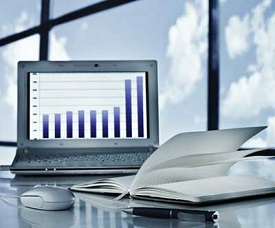
A computer has high speed of calculation, diligence, accuracy, reliability, or versatility which has made it an integrated part in all business organizations.
Computer is used in business organizations for −
- Payroll calculations
- Budgeting
- Sales analysis
- Financial forecasting
- Managing employee database
- Maintenance of stocks, etc.
Banking
Today, banking is almost totally dependent on computers.
Banks provide the following facilities −
Online accounting facility, which includes checking current balance, making deposits and overdrafts, checking interest charges, shares, and trustee records.
ATM machines which are completely automated are making it even easier for customers to deal with banks.
Insurance
Insurance companies are keeping all records up-to-date with the help of computers. Insurance companies, finance houses, and stock broking firms are widely using computers for their concerns.
Insurance companies are maintaining a database of all clients with information showing −
- Procedure to continue with policies
- Starting date of the policies
- Next due installment of a policy
- Maturity date
- Interests due
- Survival benefits
- Bonus
Education

The computer helps in providing a lot of facilities in the education system.
The computer provides a tool in the education system known as CBE (Computer Based Education).
CBE involves control, delivery, and evaluation of learning.
Computer education is rapidly increasing the graph of number of computer students.
There are a number of methods in which educational institutions can use a computer to educate the students.
It is used to prepare a database about performance of a student and analysis is carried out on this basis.
Marketing
In marketing, uses of the computer are following −
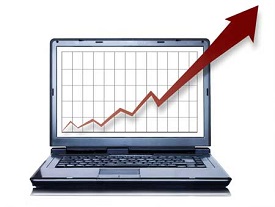
Advertising − With computers, advertising professionals create art and graphics, write and revise copy, and print and disseminate ads with the goal of selling more products.
Home Shopping − Home shopping has been made possible through the use of computerized catalogues that provide access to product information and permit direct entry of orders to be filled by the customers.
Healthcare
Computers have become an important part in hospitals, labs, and dispensaries. They are being used in hospitals to keep the record of patients and medicines. It is also used in scanning and diagnosing different diseases. ECG, EEG, ultrasounds and CT scans, etc. are also done by computerized machines.
Following are some major fields of health care in which computers are used.

Diagnostic System − Computers are used to collect data and identify the cause of illness.
Lab-diagnostic System − All tests can be done and the reports are prepared by computer.
Patient Monitoring System − These are used to check the patient's signs for abnormality such as in Cardiac Arrest, ECG, etc.
Pharma Information System − Computer is used to check drug labels, expiry dates, harmful side effects, etc.
Surgery − Nowadays, computers are also used in performing surgery.
Engineering Design
Computers are widely used for Engineering purpose.
One of the major areas is CAD (Computer Aided Design) that provides creation and modification of images. Some of the fields are −
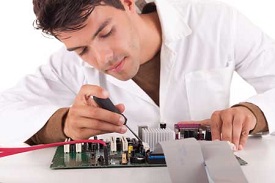
Structural Engineering − Requires stress and strain analysis for design of ships, buildings, budgets, airplanes, etc.
Industrial Engineering − Computers deal with design, implementation, and improvement of integrated systems of people, materials, and equipment.
Architectural Engineering − Computers help in planning towns, designing buildings, determining a range of buildings on a site using both 2D and 3D drawings.
Military
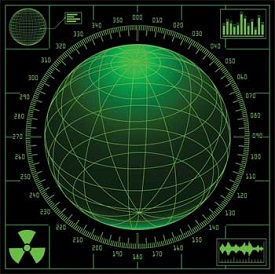
Computers are largely used in defence. Modern tanks, missiles, weapons, etc. Military also employs computerised control systems. Some military areas where a computer has been used are −
- Missile Control
- Military Communication
- Military Operation and Planning
- Smart Weapons
Communication
Communication is a way to convey a message, an idea, a picture, or speech that is received and understood clearly and correctly by the person for whom it is meant. Some main areas in this category are −

- Chatting
- Usenet
- FTP
- Telnet
- Video-conferencing
Government
Computers play an important role in government services. Some major fields in this category are −
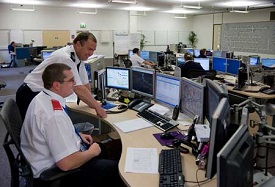
- Budgets
- Sales tax department
- Income tax department
- Computation of male/female ratio
- Computerisation of voters lists
- Computerisation of PAN card
- Weather forecasting
Generations
Generation in computer terminology is a change in technology a computer is/was being used. Initially, the generation term was used to distinguish between varying hardware technologies. Nowadays, generation includes both hardware and software, which together make up an entire computer system.
There are five computer generations known till date. Each generation has been discussed in detail along with their time period and characteristics. In the following table, approximate dates against each generation has been mentioned, which are normally accepted.
Following are the main five generations of computers.
| S.No | Generation & Description |
|---|---|
| 1 | First Generation The period of first generation: 1946-1959. Vacuum tube based. |
| 2 | Second Generation The period of second generation: 1959-1965. Transistor based. |
| 3 | Third Generation The period of third generation: 1965-1971. Integrated Circuit based. |
| 4 | Fourth Generation The period of fourth generation: 1971-1980. VLSI microprocessor based. |
| 5 | Fifth Generation The period of fifth generation: 1980-onwards. ULSI microprocessor based. |
Types
S.No. Type Specifications 1 PC (Personal Computer) It is a single user computer system having moderately powerful microprocessor 2 Workstation It is also a single user computer system, similar to personal computer however has a more powerful microprocessor. 3 Mini Computer It is a multi-user computer system, capable of supporting hundreds of users simultaneously. 4 Main Frame It is a multi-user computer system, capable of supporting hundreds of users simultaneously. Software technology is different from minicomputer. 5 Supercomputer It is an extremely fast computer, which can execute hundreds of millions of instructions per second. PC (Personal Computer)
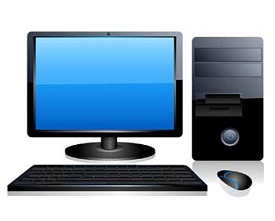
A PC can be defined as a small, relatively inexpensive computer designed for an individual user. PCs are based on the microprocessor technology that enables manufacturers to put an entire CPU on one chip. Businesses use personal computers for word processing, accounting, desktop publishing, and for running spreadsheet and database management applications. At home, the most popular use for personal computers is playing games and surfing the Internet.
Although personal computers are designed as single-user systems, these systems are normally linked together to form a network. In terms of power, now-a-days high-end models of the Macintosh and PC offer the same computing power and graphics capability as low-end workstations by Sun Microsystems, Hewlett-Packard, and Dell.
Workstation
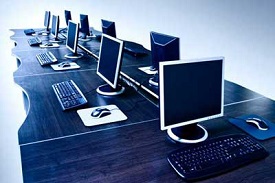
Workstation is a computer used for engineering applications (CAD/CAM), desktop publishing, software development, and other such types of applications which require a moderate amount of computing power and relatively high quality graphics capabilities.
Workstations generally come with a large, high-resolution graphics screen, large amount of RAM, inbuilt network support, and a graphical user interface. Most workstations also have mass storage device such as a disk drive, but a special type of workstation, called diskless workstation, comes without a disk drive.
Common operating systems for workstations are UNIX and Windows NT. Like PC, workstations are also single-user computers like PC but are typically linked together to form a local-area network, although they can also be used as stand-alone systems.
Minicomputer
It is a midsize multi-processing system capable of supporting up to 250 users simultaneously.
Mainframe
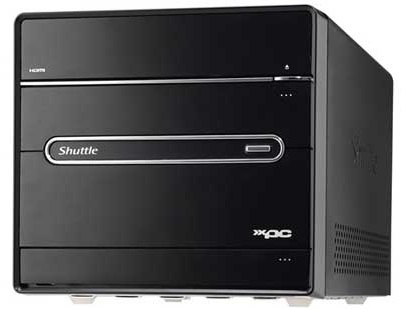
Mainframe is very large in size and is an expensive computer capable of supporting hundreds or even thousands of users simultaneously. Mainframe executes many programs concurrently and supports many simultaneous execution of programs.
Supercomputer
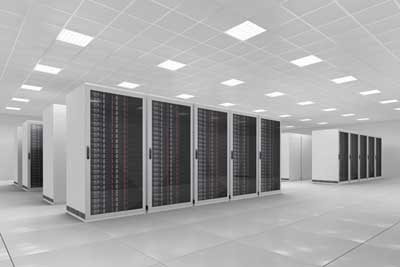
Supercomputers are one of the fastest computers currently available. Supercomputers are very expensive and are employed for specialized applications that require immense amount of mathematical calculations (number crunching).
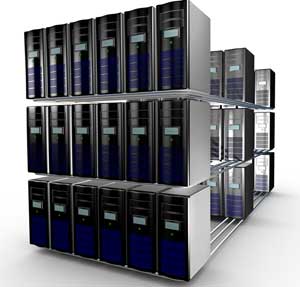
For example, weather forecasting, scientific simulations, (animated) graphics, fluid dynamic calculations, nuclear energy research, electronic design, and analysis of geological data (e.g. in petrochemical prospecting).
Components
| S.No. | Operation | Description |
|---|---|---|
| 1 | Take Input | The process of entering data and instructions into the computer system. |
| 2 | Store Data | Saving data and instructions so that they are available for processing as and when required. |
| 3 | Processing Data | Performing arithmetic, and logical operations on data in order to convert them into useful information. |
| 4 | Output Information | The process of producing useful information or results for the user, such as a printed report or visual display. |
| 5 | Control the workflow | Directs the manner and sequence in which all of the above operations are performed. |
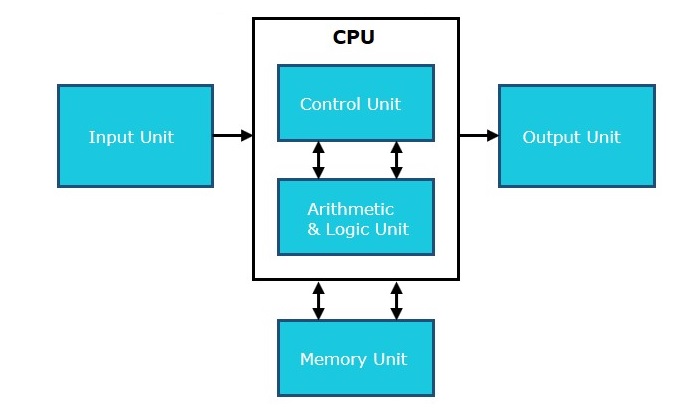
Input Unit
This unit contains devices with the help of which we enter data into the computer. This unit creates a link between the user and the computer. The input devices translate the information into a form understandable by the computer.
CPU (Central Processing Unit)
CPU is considered as the brain of the computer. CPU performs all types of data processing operations. It stores data, intermediate results, and instructions (program). It controls the operation of all parts of the computer.
CPU itself has the following three components −
- ALU (Arithmetic Logic Unit)
- Memory Unit
- Control Unit
Output Unit
The output unit consists of devices with the help of which we get the information from the computer. This unit is a link between the computer and the users. Output devices translate the computer's output into a form understandable by the users.
CPU
Central Processing Unit (CPU) consists of the following features −
- CPU is considered as the brain of the computer.
- CPU performs all types of data processing operations.
- It stores data, intermediate results, and instructions (program).
- It controls the operation of all parts of the computer.
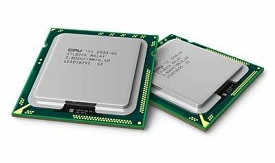
CPU itself has following three components.
- Memory or Storage Unit
- Control Unit
- ALU(Arithmetic Logic Unit)
Memory or Storage Unit
This unit can store instructions, data, and intermediate results. This unit supplies information to other units of the computer when needed. It is also known as internal storage unit or the main memory or the primary storage or Random Access Memory (RAM).
Its size affects speed, power, and capability. Primary memory and secondary memory are two types of memories in the computer. Functions of the memory unit are −
It stores all the data and the instructions required for processing.
It stores intermediate results of processing.
It stores the final results of processing before these results are released to an output device.
All inputs and outputs are transmitted through the main memory.
Control Unit
This unit controls the operations of all parts of the computer but does not carry out any actual data processing operations.
Functions of this unit are −
It is responsible for controlling the transfer of data and instructions among other units of a computer.
It manages and coordinates all the units of the computer.
It obtains the instructions from the memory, interprets them, and directs the operation of the computer.
It communicates with Input/Output devices for transfer of data or results from storage.
It does not process or store data.
ALU (Arithmetic Logic Unit)
This unit consists of two subsections namely,
- Arithmetic Section
- Logic Section
Arithmetic Section
Function of arithmetic section is to perform arithmetic operations like addition, subtraction, multiplication, and division. All complex operations are done by making repetitive use of the above operations.
Logic Section
Function of logic section is to perform logic operations such as comparing, selecting, matching, and merging of data.
Input Devices
- Keyboard
- Mouse
- Joy Stick
- Light pen
- Track Ball
- Scanner
- Graphic Tablet
- Microphone
- Magnetic Ink Card Reader(MICR)
- Optical Character Reader(OCR)
- Bar Code Reader
- Optical Mark Reader(OMR)
Keyboard
Keyboard is the most common and very popular input device which helps to input data to the computer. The layout of the keyboard is like that of traditional typewriter, although there are some additional keys provided for performing additional functions.
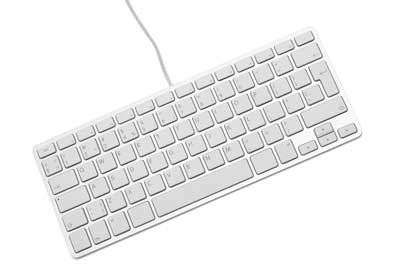
Keyboards are of two sizes 84 keys or 101/102 keys, but now keyboards with 104 keys or 108 keys are also available for Windows and Internet.
The keys on the keyboard are as follows −
| S.No | Keys & Description |
|---|---|
| 1 | Typing Keys These keys include the letter keys (A-Z) and digit keys (09) which generally give the same layout as that of typewriters. |
| 2 | Numeric Keypad It is used to enter the numeric data or cursor movement. Generally, it consists of a set of 17 keys that are laid out in the same configuration used by most adding machines and calculators. |
| 3 | Function Keys The twelve function keys are present on the keyboard which are arranged in a row at the top of the keyboard. Each function key has a unique meaning and is used for some specific purpose. |
| 4 | Control keys These keys provide cursor and screen control. It includes four directional arrow keys. Control keys also include Home, End, Insert, Delete, Page Up, Page Down, Control(Ctrl), Alternate(Alt), Escape(Esc). |
| 5 | Special Purpose Keys Keyboard also contains some special purpose keys such as Enter, Shift, Caps Lock, Num Lock, Space bar, Tab, and Print Screen. |
Mouse
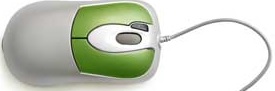
Mouse is the most popular pointing device. It is a very famous cursor-control device having a small palm size box with a round ball at its base, which senses the movement of the mouse and sends corresponding signals to the CPU when the mouse buttons are pressed.
Generally, it has two buttons called the left and the right button and a wheel is present between the buttons. A mouse can be used to control the position of the cursor on the screen, but it cannot be used to enter text into the computer.
Advantages
- Easy to use
- Not very expensive
- Moves the cursor faster than the arrow keys of the keyboard.
Joystick
Joystick is also a pointing device, which is used to move the cursor position on a monitor screen. It is a stick having a spherical ball at its both lower and upper ends. The lower spherical ball moves in a socket. The joystick can be moved in all four directions.
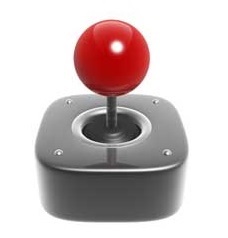
The function of the joystick is similar to that of a mouse. It is mainly used in Computer Aided Designing (CAD) and playing computer games.
Light Pen
Light pen is a pointing device similar to a pen. It is used to select a displayed menu item or draw pictures on the monitor screen. It consists of a photocell and an optical system placed in a small tube.

When the tip of a light pen is moved over the monitor screen and the pen button is pressed, its photocell sensing element detects the screen location and sends the corresponding signal to the CPU.
Track Ball
Track ball is an input device that is mostly used in notebook or laptop computer, instead of a mouse. This is a ball which is half inserted and by moving fingers on the ball, the pointer can be moved.
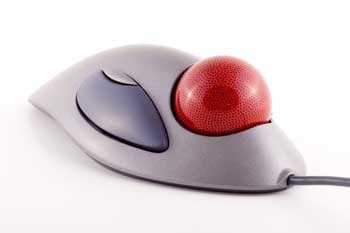
Since the whole device is not moved, a track ball requires less space than a mouse. A track ball comes in various shapes like a ball, a button, or a square.
Scanner
Scanner is an input device, which works more like a photocopy machine. It is used when some information is available on paper and it is to be transferred to the hard disk of the computer for further manipulation.
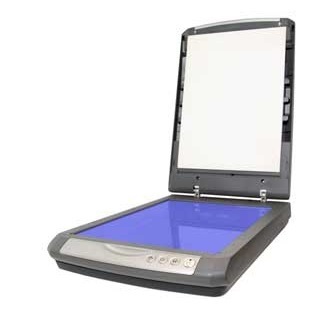
Scanner captures images from the source which are then converted into a digital form that can be stored on the disk. These images can be edited before they are printed.
Digitizer
Digitizer is an input device which converts analog information into digital form. Digitizer can convert a signal from the television or camera into a series of numbers that could be stored in a computer. They can be used by the computer to create a picture of whatever the camera had been pointed at.
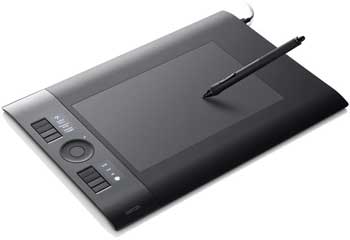
Digitizer is also known as Tablet or Graphics Tablet as it converts graphics and pictorial data into binary inputs. A graphic tablet as digitizer is used for fine works of drawing and image manipulation applications.
Microphone
Microphone is an input device to input sound that is then stored in a digital form.
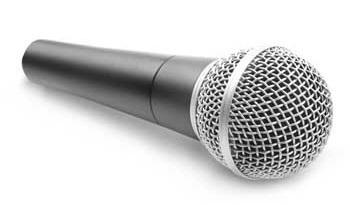
The microphone is used for various applications such as adding sound to a multimedia presentation or for mixing music.
Magnetic Ink Card Reader (MICR)
MICR input device is generally used in banks as there are large number of cheques to be processed every day. The bank's code number and cheque number are printed on the cheques with a special type of ink that contains particles of magnetic material that are machine readable.
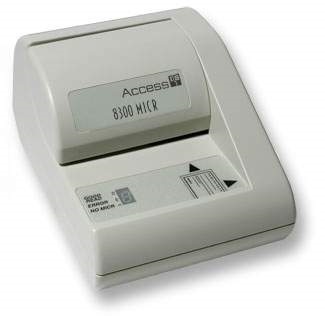
This reading process is called Magnetic Ink Character Recognition (MICR). The main advantages of MICR is that it is fast and less error prone.
Optical Character Reader (OCR)
OCR is an input device used to read a printed text.
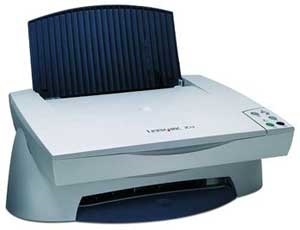
OCR scans the text optically, character by character, converts them into a machine readable code, and stores the text on the system memory.
Bar Code Readers
Bar Code Reader is a device used for reading bar coded data (data in the form of light and dark lines). Bar coded data is generally used in labelling goods, numbering the books, etc. It may be a handheld scanner or may be embedded in a stationary scanner.
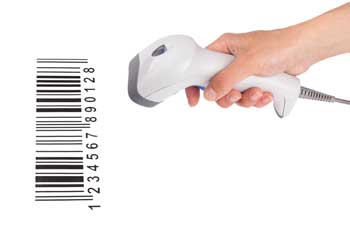
Bar Code Reader scans a bar code image, converts it into an alphanumeric value, which is then fed to the computer that the bar code reader is connected to.
Optical Mark Reader (OMR)
OMR is a special type of optical scanner used to recognize the type of mark made by pen or pencil. It is used where one out of a few alternatives is to be selected and marked.
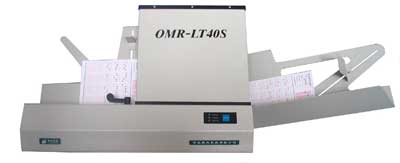
It is specially used for checking the answer sheets of examinations having multiple choice questions.
Output Devices
- Monitors
- Graphic Plotter
- Printer
Monitors
Monitors, commonly called as Visual Display Unit (VDU), are the main output device of a computer. It forms images from tiny dots, called pixels that are arranged in a rectangular form. The sharpness of the image depends upon the number of pixels.
There are two kinds of viewing screen used for monitors.
- Cathode-Ray Tube (CRT)
- Flat-Panel Display
Cathode-Ray Tube (CRT) Monitor
The CRT display is made up of small picture elements called pixels. The smaller the pixels, the better the image clarity or resolution. It takes more than one illuminated pixel to form a whole character, such as the letter ‘e’ in the word help.
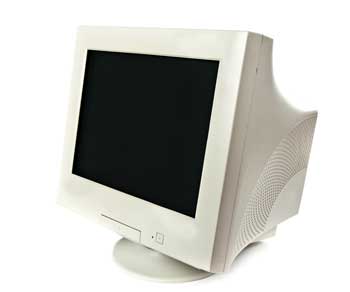
A finite number of characters can be displayed on a screen at once. The screen can be divided into a series of character boxes - fixed location on the screen where a standard character can be placed. Most screens are capable of displaying 80 characters of data horizontally and 25 lines vertically.
There are some disadvantages of CRT −
- Large in Size
- High power consumption
Flat-Panel Display Monitor
The flat-panel display refers to a class of video devices that have reduced volume, weight and power requirement in comparison to the CRT. You can hang them on walls or wear them on your wrists. Current uses of flat-panel displays include calculators, video games, monitors, laptop computer, and graphics display.
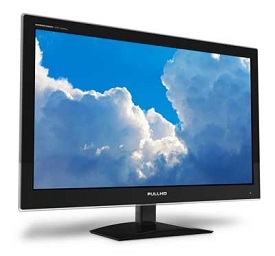
The flat-panel display is divided into two categories −
Emissive Displays − Emissive displays are devices that convert electrical energy into light. For example, plasma panel and LED (Light-Emitting Diodes).
Non-Emissive Displays − Non-emissive displays use optical effects to convert sunlight or light from some other source into graphics patterns. For example, LCD (Liquid-Crystal Device).
Printers
Printer is an output device, which is used to print information on paper.
There are two types of printers −
- Impact Printers
- Non-Impact Printers
Impact Printers
Impact printers print the characters by striking them on the ribbon, which is then pressed on the paper.
Characteristics of Impact Printers are the following −
- Very low consumable costs
- Very noisy
- Useful for bulk printing due to low cost
- There is physical contact with the paper to produce an image
These printers are of two types −
- Character printers
- Line printers
Character Printers
Character printers are the printers which print one character at a time.
These are further divided into two types:
- Dot Matrix Printer(DMP)
- Daisy Wheel
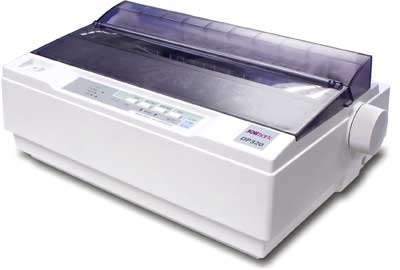
Dot Matrix Printer
In the market, one of the most popular printers is Dot Matrix Printer. These printers are popular because of their ease of printing and economical price. Each character printed is in the form of pattern of dots and head consists of a Matrix of Pins of size (5*7, 7*9, 9*7 or 9*9) which come out to form a character which is why it is called Dot Matrix Printer.
Advantages
- Inexpensive
- Widely Used
- Other language characters can be printed
Disadvantages
- Slow Speed
- Poor Quality
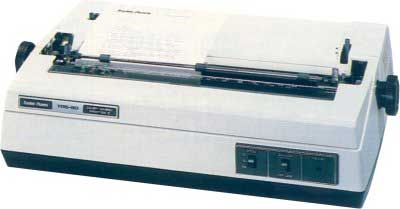
Daisy Wheel
Head is lying on a wheel and pins corresponding to characters are like petals of Daisy (flower) which is why it is called Daisy Wheel Printer. These printers are generally used for word-processing in offices that require a few letters to be sent here and there with very nice quality.
Advantages
- More reliable than DMP
- Better quality
- Fonts of character can be easily changed
Disadvantages
- Slower than DMP
- Noisy
- More expensive than DMP
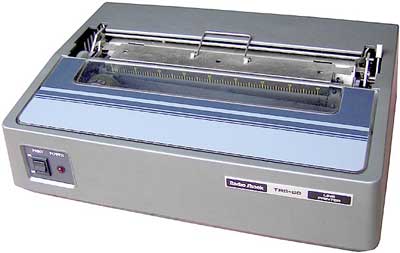
Line Printers
Line printers are the printers which print one line at a time.
These are of two types −
- Drum Printer
- Chain Printer
Drum Printer
This printer is like a drum in shape hence it is called drum printer. The surface of the drum is divided into a number of tracks. Total tracks are equal to the size of the paper, i.e. for a paper width of 132 characters, drum will have 132 tracks. A character set is embossed on the track. Different character sets available in the market are 48 character set, 64 and 96 characters set. One rotation of drum prints one line. Drum printers are fast in speed and can print 300 to 2000 lines per minute.
Advantages
- Very high speed
Disadvantages
- Very expensive
- Characters fonts cannot be changed
Chain Printer
In this printer, a chain of character sets is used, hence it is called Chain Printer. A standard character set may have 48, 64, or 96 characters.
Advantages
- Character fonts can easily be changed.
- Different languages can be used with the same printer.
Disadvantages
- Noisy
Non-impact Printers
Non-impact printers print the characters without using the ribbon. These printers print a complete page at a time, thus they are also called as Page Printers.
These printers are of two types −
- Laser Printers
- Inkjet Printers
Characteristics of Non-impact Printers
- Faster than impact printers
- They are not noisy
- High quality
- Supports many fonts and different character size
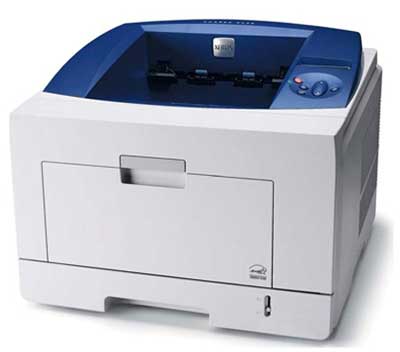
Laser Printers
These are non-impact page printers. They use laser lights to produce the dots needed to form the characters to be printed on a page.
Advantages
- Very high speed
- Very high quality output
- Good graphics quality
- Supports many fonts and different character size
Disadvantages
- Expensive
- Cannot be used to produce multiple copies of a document in a single printing
Inkjet Printers
Inkjet printers are non-impact character printers based on a relatively new technology. They print characters by spraying small drops of ink onto paper. Inkjet printers produce high quality output with presentable features.
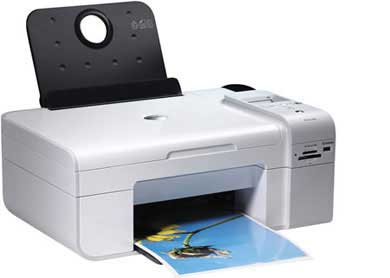
They make less noise because no hammering is done and these have many styles of printing modes available. Color printing is also possible. Some models of Inkjet printers can produce multiple copies of printing also.
Advantages
- High quality printing
- More reliable
Disadvantages
- Expensive as the cost per page is high
- Slow as compared to laser printer
Memory
A memory is just like a human brain. It is used to store data and instructions. Computer memory is the storage space in the computer, where data is to be processed and instructions required for processing are stored. The memory is divided into large number of small parts called cells. Each location or cell has a unique address, which varies from zero to memory size minus one. For example, if the computer has 64k words, then this memory unit has 64 * 1024 = 65536 memory locations. The address of these locations varies from 0 to 65535.
Memory is primarily of three types −
- Cache Memory
- Primary Memory/Main Memory
- Secondary Memory
Cache Memory
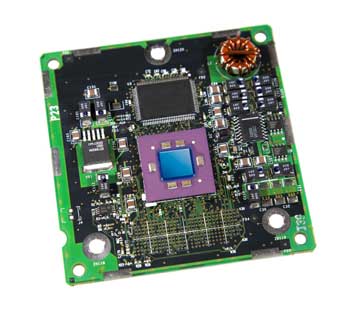
Cache memory is a very high speed semiconductor memory which can speed up the CPU. It acts as a buffer between the CPU and the main memory. It is used to hold those parts of data and program which are most frequently used by the CPU. The parts of data and programs are transferred from the disk to cache memory by the operating system, from where the CPU can access them.
Advantages
The advantages of cache memory are as follows −
- Cache memory is faster than main memory.
- It consumes less access time as compared to main memory.
- It stores the program that can be executed within a short period of time.
- It stores data for temporary use.
Disadvantages
The disadvantages of cache memory are as follows −
- Cache memory has limited capacity.
- It is very expensive.
Primary Memory (Main Memory)
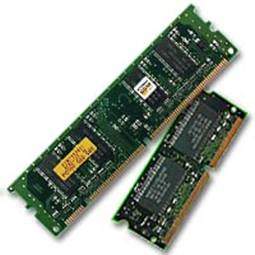
Primary memory holds only those data and instructions on which the computer is currently working. It has a limited capacity and data is lost when power is switched off. It is generally made up of semiconductor device. These memories are not as fast as registers. The data and instruction required to be processed resides in the main memory. It is divided into two subcategories RAM and ROM.
Characteristics of Main Memory
- These are semiconductor memories.
- It is known as the main memory.
- Usually volatile memory.
- Data is lost in case power is switched off.
- It is the working memory of the computer.
- Faster than secondary memories.
- A computer cannot run without the primary memory.
Secondary Memory
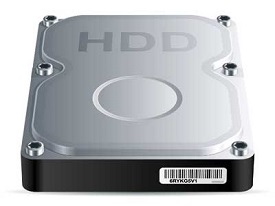
This type of memory is also known as external memory or non-volatile. It is slower than the main memory. These are used for storing data/information permanently. CPU directly does not access these memories, instead they are accessed via input-output routines. The contents of secondary memories are first transferred to the main memory, and then the CPU can access it. For example, disk, CD-ROM, DVD, etc.
Characteristics of Secondary Memory
- These are magnetic and optical memories.
- It is known as the backup memory.
- It is a non-volatile memory.
- Data is permanently stored even if power is switched off.
- It is used for storage of data in a computer.
- Computer may run without the secondary memory.
- Slower than primary memories.
Random Access Memory (RAM)
RAM (Random Access Memory) is the internal memory of the CPU for storing data, program, and program result. It is a read/write memory which stores data until the machine is working. As soon as the machine is switched off, data is erased.
Access time in RAM is independent of the address, that is, each storage location inside the memory is as easy to reach as other locations and takes the same amount of time. Data in the RAM can be accessed randomly but it is very expensive.
RAM is volatile, i.e. data stored in it is lost when we switch off the computer or if there is a power failure. Hence, a backup Uninterruptible Power System (UPS) is often used with computers. RAM is small, both in terms of its physical size and in the amount of data it can hold.
RAM is of two types −
- Static RAM (SRAM)
- Dynamic RAM (DRAM)
Static RAM (SRAM)
The word static indicates that the memory retains its contents as long as power is being supplied. However, data is lost when the power gets down due to volatile nature. SRAM chips use a matrix of 6-transistors and no capacitors. Transistors do not require power to prevent leakage, so SRAM need not be refreshed on a regular basis.
There is extra space in the matrix, hence SRAM uses more chips than DRAM for the same amount of storage space, making the manufacturing costs higher. SRAM is thus used as cache memory and has very fast access.
Characteristic of Static RAM
- Long life
- No need to refresh
- Faster
- Used as cache memory
- Large size
- Expensive
- High power consumption
Dynamic RAM (DRAM)
DRAM, unlike SRAM, must be continually refreshed in order to maintain the data. This is done by placing the memory on a refresh circuit that rewrites the data several hundred times per second. DRAM is used for most system memory as it is cheap and small. All DRAMs are made up of memory cells, which are composed of one capacitor and one transistor.
Characteristics of Dynamic RAM
- Short data lifetime
- Needs to be refreshed continuously
- Slower as compared to SRAM
- Used as RAM
- Smaller in size
- Less expensive
- Less power consumption
Read Only Memory (ROM)
ROM stands for Read Only Memory. The memory from which we can only read but cannot write on it. This type of memory is non-volatile. The information is stored permanently in such memories during manufacture. A ROM stores such instructions that are required to start a computer. This operation is referred to as bootstrap. ROM chips are not only used in the computer but also in other electronic items like washing machine and microwave oven.
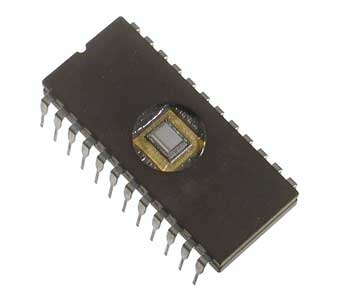
Let us now discuss the various types of ROMs and their characteristics.
MROM (Masked ROM)
The very first ROMs were hard-wired devices that contained a pre-programmed set of data or instructions. These kind of ROMs are known as masked ROMs, which are inexpensive.
PROM (Programmable Read Only Memory)
PROM is read-only memory that can be modified only once by a user. The user buys a blank PROM and enters the desired contents using a PROM program. Inside the PROM chip, there are small fuses which are burnt open during programming. It can be programmed only once and is not erasable.
EPROM (Erasable and Programmable Read Only Memory)
EPROM can be erased by exposing it to ultra-violet light for a duration of up to 40 minutes. Usually, an EPROM eraser achieves this function. During programming, an electrical charge is trapped in an insulated gate region. The charge is retained for more than 10 years because the charge has no leakage path. For erasing this charge, ultra-violet light is passed through a quartz crystal window (lid). This exposure to ultra-violet light dissipates the charge. During normal use, the quartz lid is sealed with a sticker.
EEPROM (Electrically Erasable and Programmable Read Only Memory)
EEPROM is programmed and erased electrically. It can be erased and reprogrammed about ten thousand times. Both erasing and programming take about 4 to 10 ms (millisecond). In EEPROM, any location can be selectively erased and programmed. EEPROMs can be erased one byte at a time, rather than erasing the entire chip. Hence, the process of reprogramming is flexible but slow.
Advantages of ROM
The advantages of ROM are as follows −
- Non-volatile in nature
- Cannot be accidentally changed
- Cheaper than RAMs
- Easy to test
- More reliable than RAMs
- Static and do not require refreshing
- Contents are always known and can be verified
Motherboard
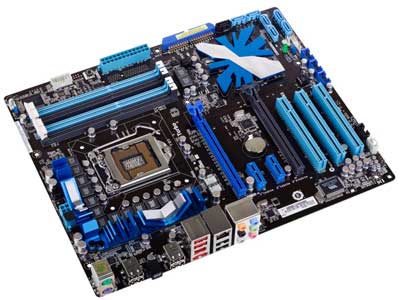
The motherboard serves as a single platform to connect all of the parts of a computer together. It connects the CPU, memory, hard drives, optical drives, video card, sound card, and other ports and expansion cards directly or via cables. It can be considered as the backbone of a computer.
Features of Motherboard
A motherboard comes with following features −
Motherboard varies greatly in supporting various types of components.
Motherboard supports a single type of CPU and few types of memories.
Video cards, hard disks, sound cards have to be compatible with the motherboard to function properly.
Motherboards, cases, and power supplies must be compatible to work properly together.
Popular Manufacturers
Following are the popular manufacturers of the motherboard.
- Intel
- ASUS
- AOpen
- ABIT
- Biostar
- Gigabyte
- MSI
Description of Motherboard
The motherboard is mounted inside the case and is securely attached via small screws through pre-drilled holes. Motherboard contains ports to connect all of the internal components. It provides a single socket for CPU, whereas for memory, normally one or more slots are available. Motherboards provide ports to attach the floppy drive, hard drive, and optical drives via ribbon cables. Motherboard carries fans and a special port designed for power supply.
There is a peripheral card slot in front of the motherboard using which video cards, sound cards, and other expansion cards can be connected to the motherboard.
On the left side, motherboards carry a number of ports to connect the monitor, printer, mouse, keyboard, speaker, and network cables. Motherboards also provide USB ports, which allow compatible devices to be connected in plug-in/plug-out fashion. For example, pen drive, digital cameras, etc.
Memory Units
| S.No. | Unit & Description |
|---|---|
| 1 | Bit (Binary Digit) A binary digit is logical 0 and 1 representing a passive or an active state of a component in an electric circuit. |
| 2 | Nibble A group of 4 bits is called nibble. |
| 3 | Byte A group of 8 bits is called byte. A byte is the smallest unit, which can represent a data item or a character. |
| 4 | Word A computer word, like a byte, is a group of fixed number of bits processed as a unit, which varies from computer to computer but is fixed for each computer. The length of a computer word is called word-size or word length. It may be as small as 8 bits or may be as long as 96 bits. A computer stores the information in the form of computer words. |
The following table lists some higher storage units −
| S.No. | Unit & Description |
|---|---|
| 1 | Kilobyte (KB) 1 KB = 1024 Bytes |
| 2 | Megabyte (MB) 1 MB = 1024 KB |
| 3 | GigaByte (GB) 1 GB = 1024 MB |
| 4 | TeraByte (TB) 1 TB = 1024 GB |
| 5 | PetaByte (PB) 1 PB = 1024 TB |
Hardware
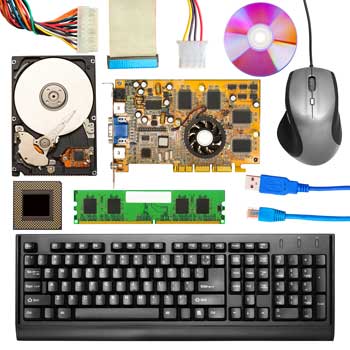
Hardware represents the physical and tangible components of a computer, i.e. the components that can be seen and touched.
Examples of Hardware are the following −
Input devices − keyboard, mouse, etc.
Output devices − printer, monitor, etc.
Secondary storage devices − Hard disk, CD, DVD, etc.
Internal components − CPU, motherboard, RAM, etc.
Relationship between Hardware and Software
Hardware and software are mutually dependent on each other. Both of them must work together to make a computer produce a useful output.
Software cannot be utilised without supporting hardware.
Hardware without a set of programs to operate upon cannot be utilized and is useless.
To get a particular job done on the computer, relevant software should be loaded into the hardware.
Hardware is a one-time expense.
Software development is very expensive and is a continuing expense.
Different software applications can be loaded on a hardware to run different jobs.
A software acts as an interface between the user and the hardware.
If the hardware is the 'heart' of a computer system, then the software is its 'soul'. Both are complementary to each other.
Software
Software is a set of programs, which is designed to perform a well-defined function. A program is a sequence of instructions written to solve a particular problem.
There are two types of software −
- System Software
- Application Software
System Software
The system software is a collection of programs designed to operate, control, and extend the processing capabilities of the computer itself. System software is generally prepared by the computer manufacturers. These software products comprise of programs written in low-level languages, which interact with the hardware at a very basic level. System software serves as the interface between the hardware and the end users.
Some examples of system software are Operating System, Compilers, Interpreter, Assemblers, etc.
Here is a list of some of the most prominent features of a system software −
- Close to the system
- Fast in speed
- Difficult to design
- Difficult to understand
- Less interactive
- Smaller in size
- Difficult to manipulate
- Generally written in low-level language
Application Software
Application software products are designed to satisfy a particular need of a particular environment. All software applications prepared in the computer lab can come under the category of Application software.
Application software may consist of a single program, such as Microsoft's notepad for writing and editing a simple text. It may also consist of a collection of programs, often called a software package, which work together to accomplish a task, such as a spreadsheet package.
Examples of Application software are the following −
- Payroll Software
- Student Record Software
- Inventory Management Software
- Income Tax Software
- Railways Reservation Software
- Microsoft Office Suite Software
- Microsoft Word
- Microsoft Excel
- Microsoft PowerPoint

Features of application software are as follows −
- Close to the user
- Easy to design
- More interactive
- Slow in speed
- Generally written in high-level language
- Easy to understand
- Easy to manipulate and use
- Bigger in size and requires large storage space.
Networking
A computer network is a system in which multiple computers are connected to each other to share information and resources.
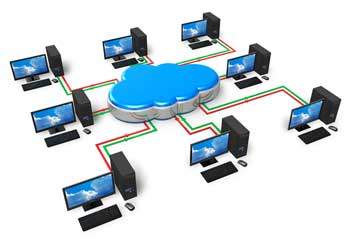
Characteristics of a Computer Network
Share resources from one computer to another.
Create files and store them in one computer, access those files from the other computer(s) connected over the network.
Connect a printer, scanner, or a fax machine to one computer within the network and let other computers of the network use the machines available over the network.
Following is the list of hardware's required to set up a computer network.
- Network Cables
- Distributors
- Routers
- Internal Network Cards
- External Network Cards
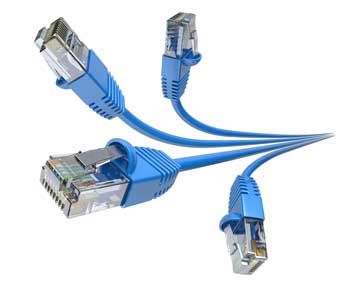
Network Cables
Network cables are used to connect computers. The most commonly used cable is Category 5 cable RJ-45.
Distributors
A computer can be connected to another one via a serial port but if we need to connect many computers to produce a network, this serial connection will not work.
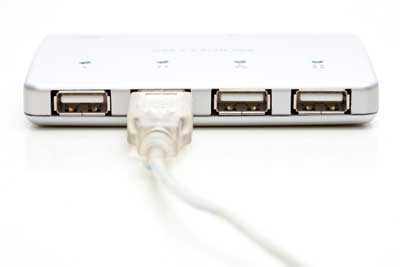
The solution is to use a central body to which other computers, printers, scanners, etc. can be connected and then this body will manage or distribute network traffic.
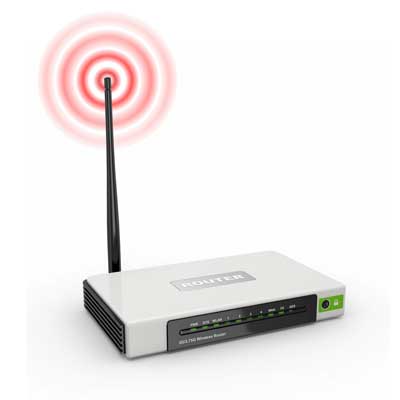
Router
A router is a type of device which acts as the central point among computers and other devices that are a part of the network. It is equipped with holes called ports. Computers and other devices are connected to a router using network cables. Now-a-days router comes in wireless modes using which computers can be connected without any physical cable.
Network Card
Network card is a necessary component of a computer without which a computer cannot be connected over a network. It is also known as the network adapter or Network Interface Card (NIC). Most branded computers have network card pre-installed. Network cards are of two types: Internal and External Network Cards.
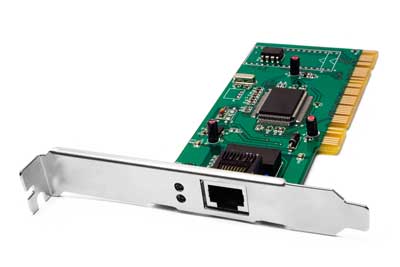
Internal Network Cards
Motherboard has a slot for internal network card where it is to be inserted. Internal network cards are of two types in which the first type uses Peripheral Component Interconnect (PCI) connection, while the second type uses Industry Standard Architecture (ISA). Network cables are required to provide network access.
External Network Cards
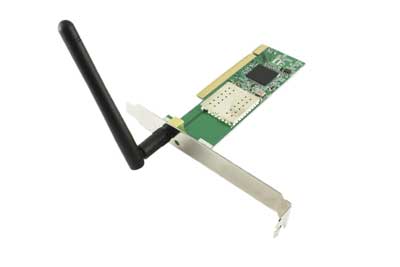
External network cards are of two types: Wireless and USB based. Wireless network card needs to be inserted into the motherboard, however no network cable is required to connect to the network.
Universal Serial Bus (USB)
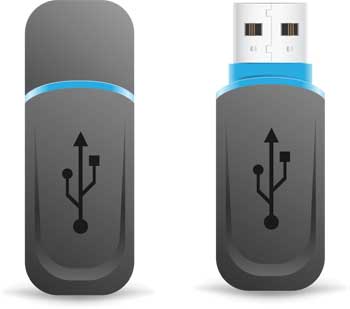
USB card is easy to use and connects via USB port. Computers automatically detect USB card and can install the drivers required to support the USB network card automatically.
Operating System
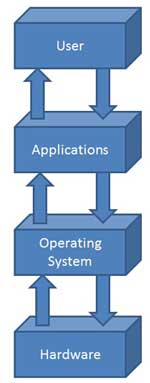
An operating system is a program that acts as an interface between the software and the computer hardware.
It is an integrated set of specialised programs used to manage overall resources and operations of the computer.
It is a specialised software that controls and monitors the execution of all other programs that reside in the computer, including application programs and other system software.
Objectives of Operating System
The objectives of the operating system are −
To make the computer system convenient to use in an efficient manner.
To hide the details of the hardware resources from the users.
To provide users a convenient interface to use the computer system.
To act as an intermediary between the hardware and its users, making it easier for the users to access and use other resources.
To manage the resources of a computer system.
To keep track of who is using which resource, granting resource requests, and mediating conflicting requests from different programs and users.
To provide efficient and fair sharing of resources among users and programs.
Characteristics of Operating System
Here is a list of some of the most prominent characteristic features of Operating Systems −
Memory Management − Keeps track of the primary memory, i.e. what part of it is in use by whom, what part is not in use, etc. and allocates the memory when a process or program requests it.
Processor Management − Allocates the processor (CPU) to a process and deallocates the processor when it is no longer required.
Device Management − Keeps track of all the devices. This is also called I/O controller that decides which process gets the device, when, and for how much time.
File Management − Allocates and de-allocates the resources and decides who gets the resources.
Security − Prevents unauthorized access to programs and data by means of passwords and other similar techniques.
Job Accounting − Keeps track of time and resources used by various jobs and/or users.
Control Over System Performance − Records delays between the request for a service and from the system.
Interaction with the Operators − Interaction may take place via the console of the computer in the form of instructions. The Operating System acknowledges the same, does the corresponding action, and informs the operation by a display screen.
Error-detecting Aids − Production of dumps, traces, error messages, and other debugging and error-detecting methods.
Coordination Between Other Software and Users − Coordination and assignment of compilers, interpreters, assemblers, and other software to the various users of the computer systems.
Internet and Intranet
Internet
It is a worldwide/global system of interconnected computer networks. It uses the standard Internet Protocol (TCP/IP). Every computer in Internet is identified by a unique IP address. IP Address is a unique set of numbers (such as 110.22.33.114) which identifies a computer’s location.
A special computer DNS (Domain Name Server) is used to provide a name to the IP Address so that the user can locate a computer by a name. For example, a DNS server will resolve a name https://www.tutorialspoint.com to a particular IP address to uniquely identify the computer on which this website is hosted.
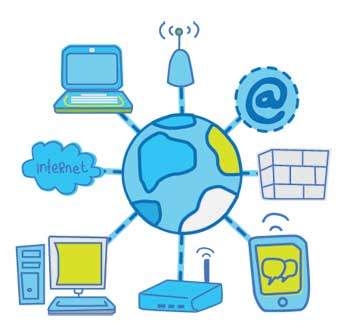
Internet is accessible to every user all over the world.
Intranet
Intranet is the system in which multiple PCs are connected to each other. PCs in intranet are not available to the world outside the intranet. Usually each organisation has its own Intranet network and members/employees of that organisation can access the computers in their intranet.
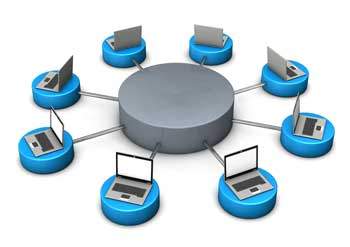
Each computer in Intranet is also identified by an IP Address which is unique among the computers in that Intranet.
Similarities between Internet and Intranet
Intranet uses the internet protocols such as TCP/IP and FTP.
Intranet sites are accessible via the web browser in a similar way as websites in the internet. However, only members of Intranet network can access intranet hosted sites.
In Intranet, own instant messengers can be used as similar to yahoo messenger/gtalk over the internet.
Differences between Internet and Intranet
Internet is general to PCs all over the world whereas Intranet is specific to few PCs.
Internet provides a wider and better access to websites to a large population, whereas Intranet is restricted.
Internet is not as safe as Intranet. Intranet can be safely privatized as per the need.


Comments
Post a Comment